
Add watermark to PDF
Add a image stamp or text watermark to the PDF with position,transparency and many other options.
Upload
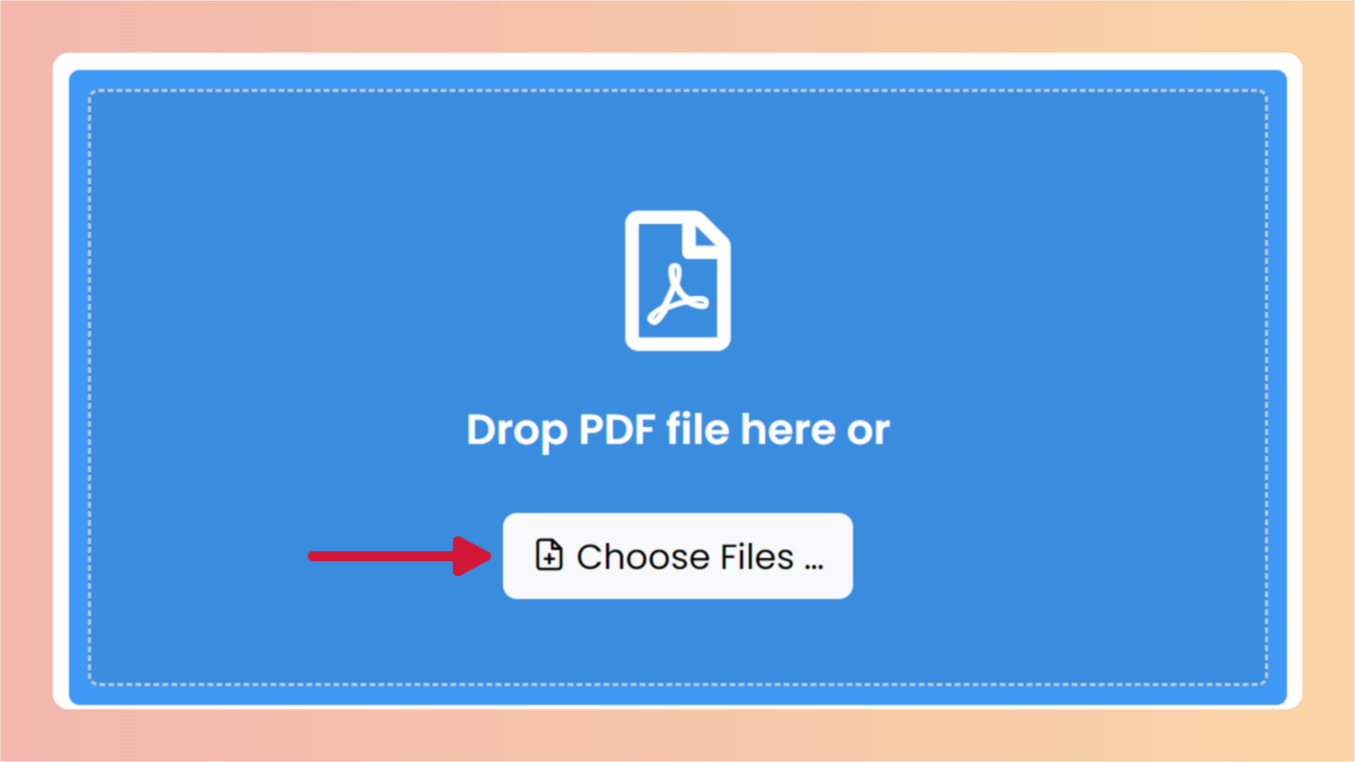
Drop PDF file here or
 Choose Files
PDFWind securely handles your file and automatically deletes it from our server in 1 hour.
By using this online serive, you agree to our Terms of Use and Privacy Policy.
How to add watermark to PDF
1 Select and upload your PDF file. Wait till the file uploaded.
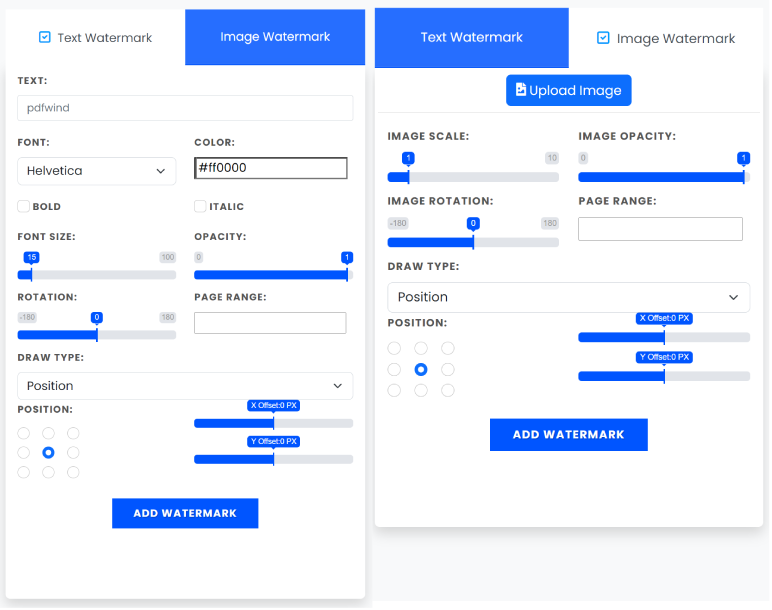
2 Once the file is uploaded, you can add text or image watermark with provide options, such as font size, color, position etc,click the Start button to start processing.
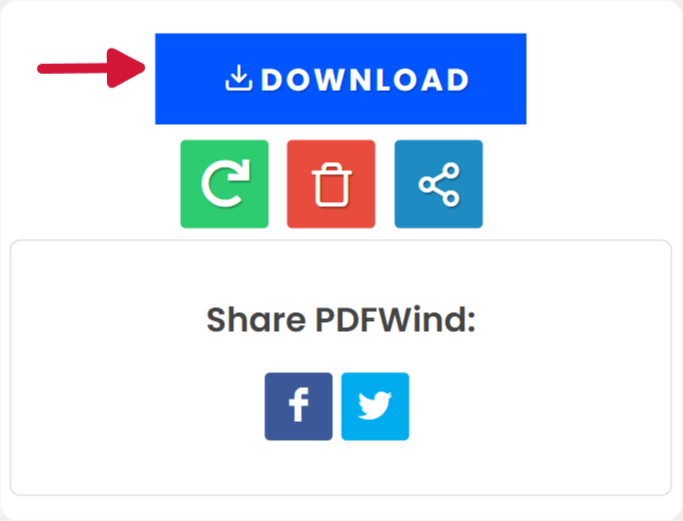
3 Click the download button or scan the QR code with your phone to download the files.
Upload
Add Watermark
Download
Paramters and Options
The following parameters and options are available for adding watermark to PDF:
<strong>Type:</strong> You can choose Text based or Image based watermark.
Appearance:
- Font: Set the Font of the Text watermark, it works with most of the characters. We also support CJK characters, but the font may display differently. We also provide other options such as Font Size, Font Color, and Opacity.
- Rotation: Set the Text rotation of the Text or Image watermark.
- Page Range: Set the page range that will be displayed in the Text or Image watermark.
- Draw Position: Set the drawing position of the Text or Image watermark.
- Offset: Depends on the drawing position or the Font size or the Image scale, you may need to use this option to adjust the final position of the Text or Image.
Frequently Asked Questions
Can I add watermarks to multiple PDF files?
No. PDFWind does not support adding watermarks to multiple PDF files at the same time. You can add them separately. But we will do it in the future.
Can I use this tool for Free?
Yes! PDFWind is a free online tool for you to convert, edit PDF files.
Do I need an account?
No. PDFWind is a free online tool. You can use it without an account.
Is installation required?
No! PDFWind is web application. You can run PDFWind on browser, but we are developing a desktop version.
Is safe to use this tool with senstive data?
We take data security and user privacy seriously. Our conversion process is secure, and we do not store any uploaded or converted files after the process is complete.
How long does it take to process a document?
It depends on the size of the document and other factors. We are always upgrading our processing server to make it faster.
Uploading
Loading...
Please wait while uploading.
Note: Please do not close or refresh this page while the file is being upload. The process may take few moments.
Page: 1 / 1
Add Watermark
Processing...
Loading...
Please wait while processing.